Pay Raise Calculator
Enter your pay and the raise to see the new pay and the raise amount.
Recent
Your last 10 settings, saved only in this browser. Nothing is uploaded.
The pay raise calculator works out your new pay and the raise amount from your current pay and a raise, given either as a percentage or as a fixed dollar amount. It is free, runs in your browser, and needs no account or sign-up.
You can enter pay per hour, per week, per month or per year. The tool shows the raise amount, the new pay and the raise as a percent of current pay. It also converts both pay figures into hourly, weekly, monthly and yearly equivalents. To model a pay cut, enter a negative number.
This page works as a salary increase calculator, pay increase calculator, payroll raise calculator, income increase calculator, compensation increase calculator and raise calculator. It also covers wage raise and paycheck raise questions. Nothing you type is uploaded. All figures are gross pay before tax and deductions.
How to use the pay raise calculator
- Enter your pay in “Current pay ($)”. Use your gross pay for the pay period you choose, before any deductions.
- Pick the period in “Pay period”: “Per hour”, “Per week”, “Per month” or “Per year”. The current pay and the raise amount are both quoted for this period.
- Under “Raise given as”, pick “A percentage” or “A dollar amount”.
- If you picked a percentage, enter the figure in “Raise (%)”. If you picked a dollar amount, enter it in “Raise per pay period ($)”. For a pay cut, type a negative number.
- Enter “Hours worked per week”. The tool uses this to turn your pay into hourly, weekly, monthly and yearly equivalents.
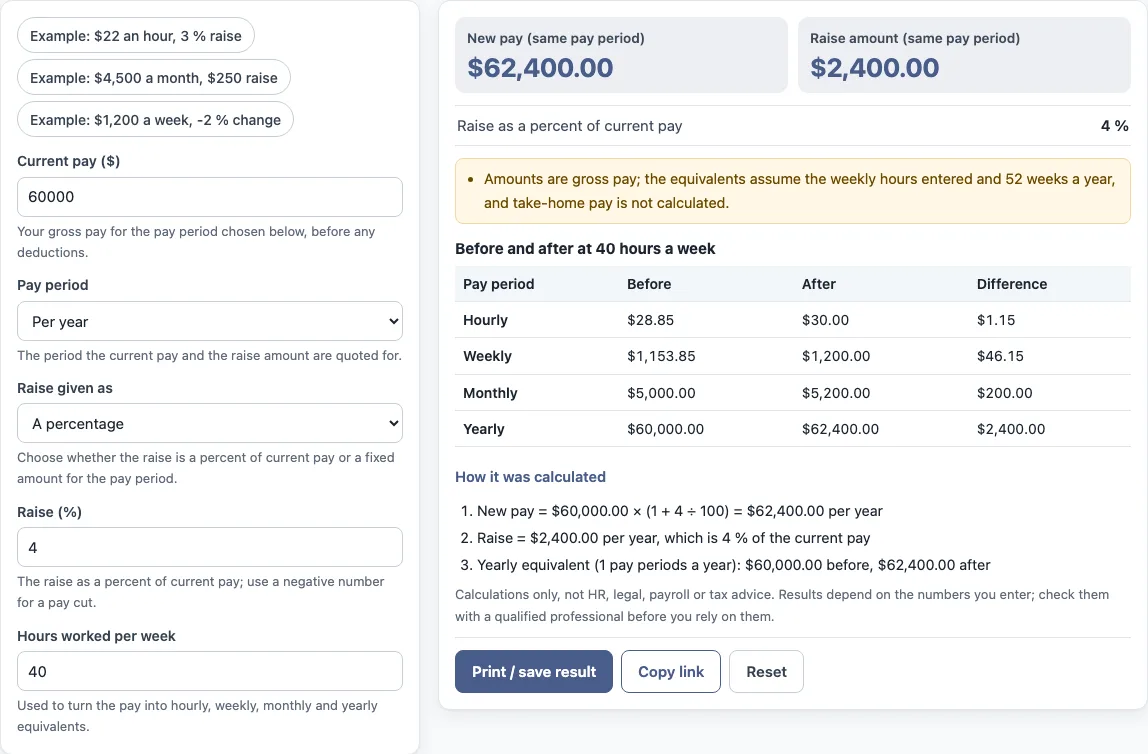
- Read “New pay (same pay period)”, “Raise amount (same pay period)” and “Raise as a percent of current pay”. Then check the table “Before and after at 40 hours a week”.
The values already in the form are an example, not real company data, so replace every one with your own numbers. The preset buttons, such as “Example: $22 an hour, 3 % raise”, fill in a sample case. “How it was calculated” under the result lists each formula step with your numbers.
“Print / save result” prints a one-page sheet with the inputs, results, calculation steps and the date. To keep a Pthree-page copy as a file, choose save as PDF in the print dialog. “Copy link” copies a link that reopens the same inputs. “Reset” restores the example values.
How to calculate a pay raise
A pay raise changes your current pay by a set amount. For a percentage raise, the rule is New pay = current pay × (1 + raise %). For a dollar raise, the rule is New pay = current pay + amount. In both cases, the raise amount is New pay − current pay. The tool applies these rules to the pay period you choose.
How do you calculate a pay raise
Use the same pay period for the current pay and the new pay, so the two figures can be compared directly. The tool’s default example shows the working. The current pay is $60,000.00 per year and the raise is 4 %. New pay = $60,000.00 × (1 + 4 ÷ 100) = $62,400.00 per year. Raise = $2,400.00 per year, which is 4 % of the current pay.
How to calculate a pay increase
A pay increase and a pay raise are the same calculation. The increase is the difference between two pay figures. The tool’s “Raise as a percent of current pay” output expresses that difference as a percentage of the current figure. If you already have two pay figures and want the percentage between them, use the salary increase percentage calculator.
How do I calculate a raise in dollars?
Under “Raise given as”, choose “A dollar amount”. Then enter the dollars in “Raise per pay period ($)”. The tool adds this amount to your current pay, so New pay = current pay + amount. Check that the period in “Pay period” matches the period the raise is quoted for, because the tool treats both figures as belonging to that period.
Does the tool calculate take-home pay?
No. Every figure is gross pay before tax and deductions, and take-home pay is not calculated. The equivalents assume the weekly hours you entered and 52 weeks a year. The tool is arithmetic only. It gives no HR, legal, payroll or tax advice, and it does not say what a result means for any person.
Frequently asked questions
Is the pay raise calculator free?
Yes. The tool is free and needs no account or sign-up.
Does the tool upload the numbers I type?
No. The tool runs in your browser, and nothing you type is uploaded. To return to the same inputs later, use “Copy link”.
Can I calculate a pay cut?
Yes. For a percentage cut, enter a negative number in “Raise (%)”. For a dollar cut, enter a negative number in “Raise per pay period ($)”.
Which pay period should I choose?
Choose the period that your current pay and the raise are quoted for. The tool shows the same-period results and then converts them into hourly, weekly, monthly and yearly equivalents.
Can I use the results in a report or policy document?
Yes. Results may be used in commercial work, such as HR reports, policies, board packs and client documents, without attribution.
Does the tool show whether a raise is right for me?
No. The tool is arithmetic only and does not say what a result means for any person. Organisations, contracts and policies can define pay figures differently, so check your own terms.
Why do the example numbers appear in the form?
They are a sample, not real company data. Replace every value with your own numbers before you use the results.
Related tools
- Salary increase percentage calculator: use it to find the percentage between two pay figures.
- Merit increase calculator: use it to work out a merit-based pay change.
- Cost of living raise calculator: use it to model a raise tied to cost of living.
- Salary growth calculator: use it to see how pay changes over several periods.
- Compa ratio calculator: use it to compare a salary with a reference pay point.
- FTE salary calculator: use it to convert a salary for a part-time or full-time equivalent role.
- Pay scale calculator: use it to work with pay scale steps.