Absence Percentage Calculator
Enter the headcount, the working days and the days absent to get the absence rate.
Recent
Your last 10 settings, saved only in this browser. Nothing is uploaded.
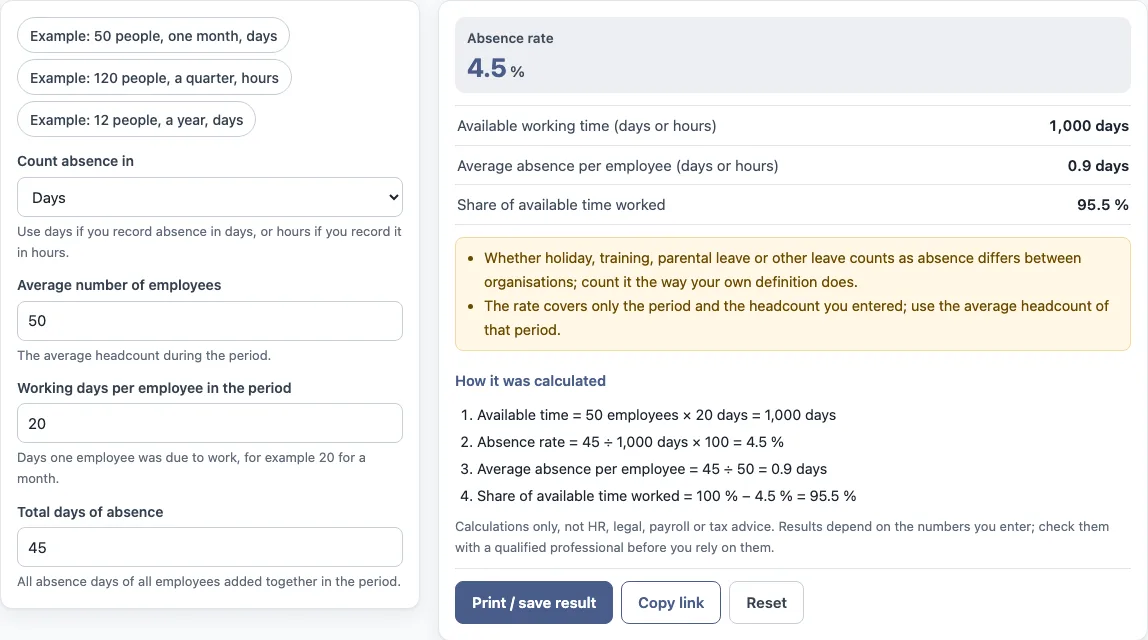
How to use the absence rate calculator
- Under “Count absence in”, choose “Days” if you record absence in days, or “Hours” if you record it in hours.
- Enter “Average number of employees” for the period. This is the average headcount, not the number on a single day.
- If you chose days, enter “Working days per employee in the period” (for example 20 for a month) and “Total days of absence” (all absence days of all employees added together). If you chose hours, enter “Working hours per employee in the period” (for example 160 for a month) and “Total hours of absence” instead.
- Read the results: “Absence rate”, “Available working time”, “Average absence per employee” and “Share of available time worked”.
- Open “How it was calculated” under the result to see each step with your own numbers.
- Replace the example values with your figures. The preset buttons “Example: 50 people, one month, days”, “Example: 120 people, a quarter, hours” and “Example: 12 people, a year, days” fill the form with sample values. “Reset” restores the default example.
Use “Print / save result” to print a one-page sheet with the inputs, results, calculation steps and date. To keep a PDF, choose save as PDF in the print dialog. “Copy link” copies a link that reopens the same inputs. The page address also keeps your inputs after any change.
How is the absence rate worked out?
The absence rate is total absence divided by the working time available in the same period, multiplied by 100. The formula is: absence rate = total absence (days or hours) ÷ (employees × available working days or hours per employee) × 100.
Using the tool’s default example, 50 employees with 20 working days each give 1,000 days of available time. With 45 days of total absence, the calculation is 45 ÷ 1,000 days × 100 = 4.5 %. The average absence per employee is 45 ÷ 50 = 0.9 days, and the share of available time worked is 100 % − 4.5 % = 95.5 %. These are the tool’s outputs for the example values. Replace them with your own numbers.
The rate covers only the period and headcount you enter, so use the average headcount for that period. Whether holiday, training, parental leave or other leave counts as absence differs between organisations. Count it the way your own definition does.
What is the difference between absence rate and the Bradford factor?
The absence rate measures how much of the available working time was lost to absence over a period. The Bradford factor is a different measure. It describes the pattern of absences, such as how often absence occurs, rather than the total amount.
The Bradford factor is commonly calculated as the number of separate absence spells, squared, multiplied by the total days absent. Organisations may apply it differently. This tool does not calculate the Bradford factor. It only produces the absence rate and the related outputs listed above.
What does the available time include?
Available time is the number of employees multiplied by the working days (or hours) each of them could have worked in the period. In the default example that is 50 employees × 20 working days = 1,000 days. Use the average headcount for the period and the same unit, days or hours, for the available time and the absence. If the absence figure is larger than the available time, the tool returns no result and shows a warning, because the rate would be above 100 %.
Sources: Wikipedia: Absenteeism.
Frequently asked questions
Does the absence rate calculator store what I enter?
Nothing you type is uploaded, because the tool runs in your browser. The page address keeps your inputs after a change, so a link can reopen them. “Copy link” copies that link.
Can I use the results in a report?
Yes. Results may be used in commercial work, such as HR reports, policies, board packs and client documents, without attribution. The tool gives no HR, legal, payroll or tax advice.
Does the tool calculate pay or sick pay?
No. The tool is arithmetic only. It does not calculate tax, take-home pay, sick pay or any legal entitlement, and it does not say what a result means for any person.
Can I calculate the absence rate in hours?
Yes. Choose “Hours” under “Count absence in”, then enter “Working hours per employee in the period” and “Total hours of absence”.
Are the values in the form real company data?
No. They are an example, not real company data. Replace every value with your own numbers before you use the results.
Which headcount should I use?
Use the average headcount for the period, in the same way as for a turnover rate. If the headcount changed a lot during the period, the average of the start and end headcounts is a simple choice, and the tool uses whatever number you type.
Related tools
- Turnover rate calculator: use it to work out how many leavers a period’s headcount produced.
- Annual turnover rate calculator: use it when you want turnover measured across a full year.
- Employee retention rate calculator: use it to see the share of staff who stayed over a period.
- Attrition rate calculator: use it to measure the rate at which employees leave an organisation.
- Cost of turnover calculator: use it to estimate the cost of employees leaving.
- Cost per hire calculator: use it to work out what it costs to recruit one new person.
- FTE calculator: use it to convert working hours into full-time equivalent figures.